How do I know when my email is opened? Complete email tracking guide
By Manas
After you send an email with MailerPlex, you can check opens in multiple ways.
1. Inside Your Gmail
Go to your Sent folder in Gmail. An opened email will have a blue tick against it. If it has not been opened yet, the tick remains grey. Hover your mouse on the blue tick and you can find an activity summary (how many times it was opened, clicked and the last open time).

Click on any of the threads with a blue tick. You can see more details in the sidebar — right inside your Gmail. You can find details like the number of opens, exact time of each open, which device your recipient opened it on (mobile or desktop), and open location.

2. Chrome and Email Notifications
When someone opens your email for the first time, we show a Chrome notification. We are careful about showing too many notifications, because it’s distracting. You will only receive the notification when your email is opened for the first time. No notification on further opens of the same mail thread.

Disabling Chrome Notification
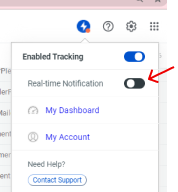
We only send one notification per email thread. But if it is still taking away your focus, here is how you can easily switch off these notifications. Click on the MailerPlex blue icon inside the Gmail topbar, then click on the switch to disable as shown below. If it’s blue, notifications are enabled. If it’s black, notifications are disabled.
Email Notification on first open
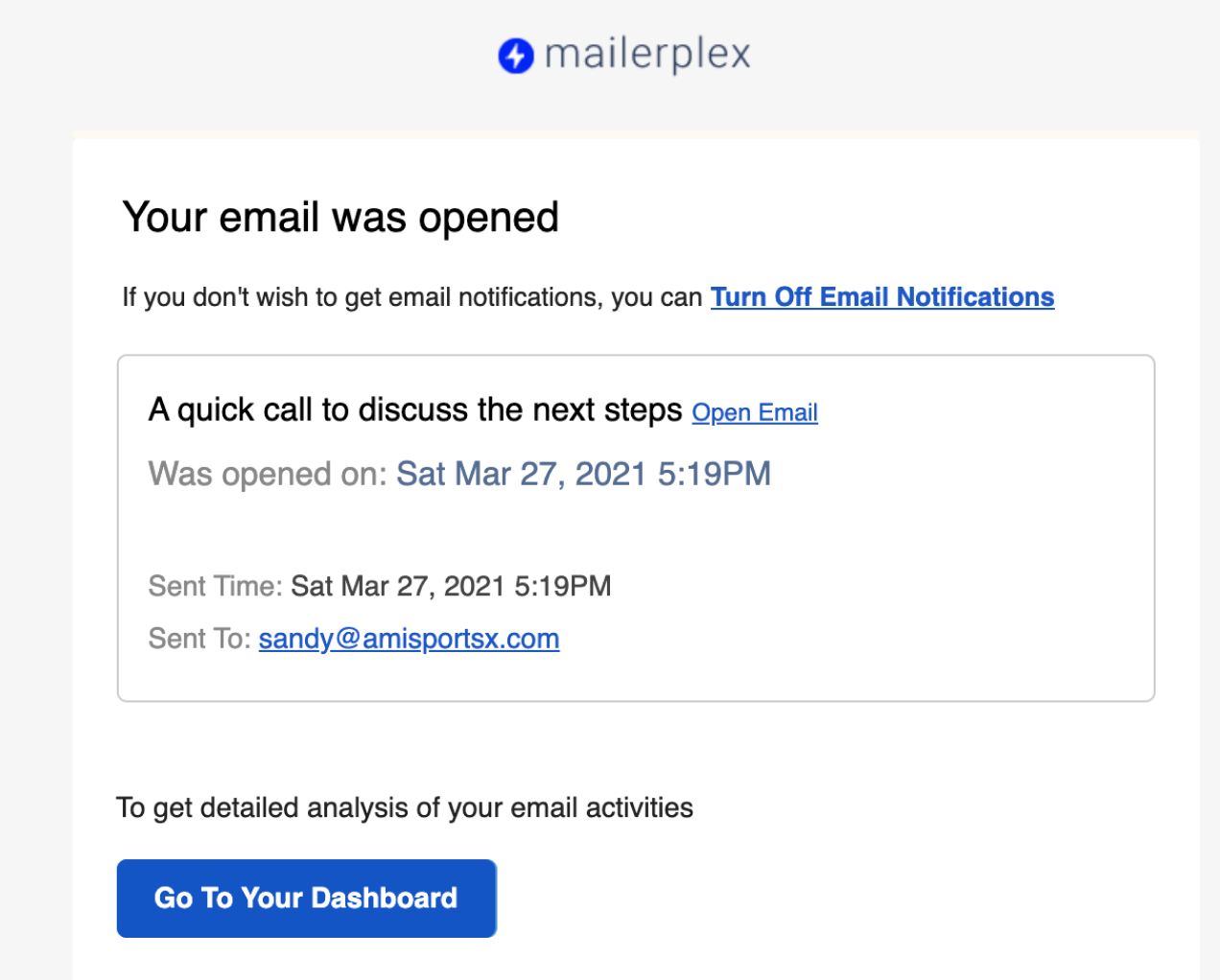
You also get an email when someone opens your mail ONLY for the first time. Most of our customers find it very useful as they can reach back quickly to take follow-up action. But if it’s distracting for you, you can switch it off by clicking on Turn off Email Notification link.
**3. Your Dashboard**
Dashboard is a powerful tool to see the activities of your sent email. To view your tracking dashboard, follow these steps: click on the MailerPlex icon on your Gmail toolbar and then click on `My Dashboard` from the menu. Or use the [Direct Link to Your Dashboard](https://app.mailerplex.com/app).

Your dashboard has multiple sections. Here you can see all your sent emails, filtered by Opened and Unopened. Opened emails can help you do better followups. For unopened, you may want to review the subject line and see what can interest your prospect better.

You can expand the activity summary link on each sent email to view the details. For every activity, you can see the exact time, the location (if available), and devices.

4. Daily email digest
We send you a daily summary of your email activities for the previous day at 8 AM next morning. This daily digest contains all the emails that were sent and their activity status.
If you don’t have MailerPlex email tracking extension for Gmail, you can get it here.
Get MailerPlex MailTrack Extension